

Fujifilm X100VI Armoury User Guide
X100VI Workflow and Look Builder
User guide
Mullins X100VI Armoury
A Lightroom Classic plug-in for building Fujifilm X100VI RAF RAW looks, installing the bundled Armoury assets, workflow collections and generating in-camera JPEG recipe ideas.
What Armoury Does
Mullins X100VI Armoury is designed to sit inside Lightroom Classic and help you quickly explore finished looks for Fujifilm X100VI RAF RAW files. It combines built-in Armoury profiles, native Fujifilm camera profiles, quick presets, mood steering, and deeper tweak controls into a useful look-building workflow.
Quick Build
Generate fresh Develop looks for the currently selected X100VI RAF RAW photo using a base profile, mood, strength setting, quick preset, and optional tweak modules.
Asset Installer
Install or repair the bundled profiles, presets, native profile helpers, AI utilities, and Smart Collections from inside the plug-in.
Recipe Roulette
Roll Fujifilm X100VI in-camera JPEG recipe ideas. Recipe Roulette is separate from Quick Build and never changes the selected Lightroom photo.
Quick Build changes the selected Lightroom Classic photo's Develop settings. Recipe Roulette only creates camera recipe text and does not touch the photo.
Requirements
Software
- Adobe Lightroom Classic 10.0 or later.
- The Mullins X100VI Armoury .lrplugin folder installed through Lightroom Classic's Plug-in Manager.
- A normal Lightroom Classic catalogue with access to the selected photo's Develop settings.
Photo Files
- Quick Build requires Fujifilm X100VI RAF RAW files.
- JPEG, HEIF, TIFF, DNG copies, scans, video files, or RAW files from other cameras are not valid Quick Build targets.
- Recipe Roulette can be opened without using the selected photo.
The plug-in checks both the camera metadata and the file type. If Lightroom Classic cannot confirm that the selected file is an X100VI RAF RAW file, Quick Build will remain disabled or the plug-in will ask you to select a compatible photo.
Installation And First Run
There are two parts to setup: installing the plug-in itself, then using Armoury's Install tab to copy the bundled assets into Lightroom Classic.
Install the plug-in
- Download and unzip the Armoury zip package.
- Open Lightroom Classic and choose File > Plug-in Manager.
- Click Add, choose the X100VIArmoury.lrplugin folder, and enable the plug-in.
- Open it from File > Plug-in Extras > Mullins X100VI Armoury....
Install the bundled assets
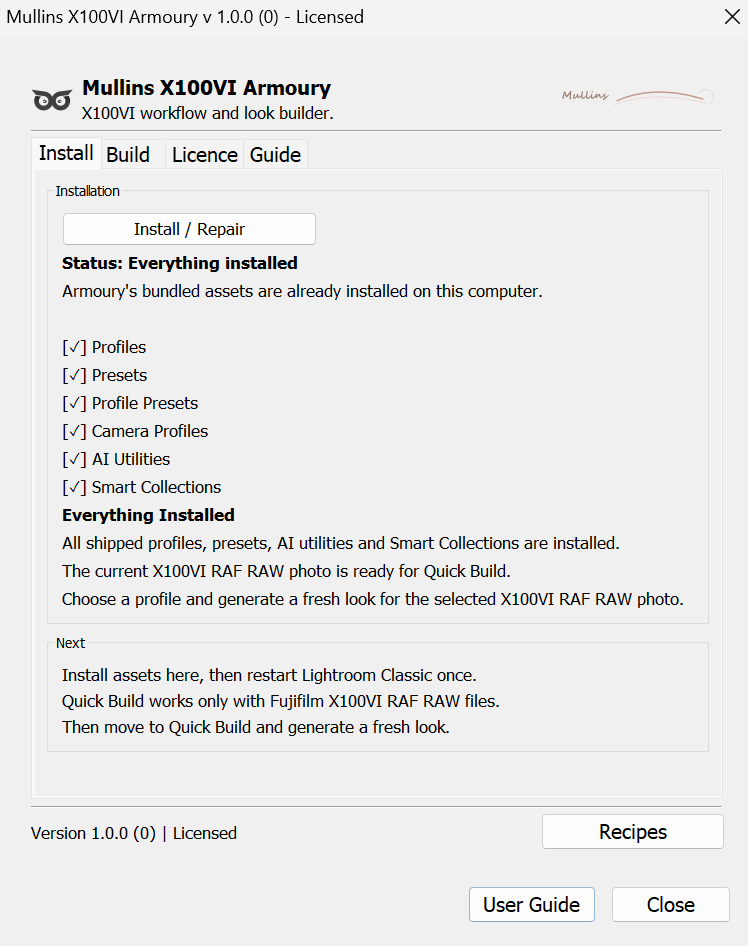
- Open the Install tab.
- Click Install / Repair.
- Wait for each asset group to complete.
- Quit and reopen Lightroom Classic when Armoury asks you to restart.
- Reopen Armoury and move to the Build tab.
| Asset group | What is installed |
|---|---|
| Armoury profiles | 24 look profiles, including Agfa Vista Colour, Classic Film Colour, Noir Monochrome, Editorial Monochrome, Vintage Slide Colour, Warm Glow Monochrome, and more. These can be used directly in Lightroom Classic or as Quick Build starting points. |
| Colour / Monochrome Develop presets | 36 bundled one-click Colour and Monochrome Lightroom presets for manual use outside the Quick Build engine. |
| Profile helper presets | 24 helper presets that expose the Armoury profiles in Lightroom's preset workflow. |
| Native camera profile helpers | 20 Fujifilm profile helpers, including Provia, Velvia, Astia, Classic Chrome, Classic Neg, Nostalgic Neg, Reala Ace, Eterna, Acros variants, Monochrome variants, Sepia, and Bleach Bypass. |
| AI utilities | 6 utility presets: Background Darken, Background Lower Distraction, Face Brighten, Sky Shape, Subject Contrast Increase, and Subject Pop. |
| Smart Collections | 52 Smart Collections under Mullins Toolkit, including workflow, ISO, date, aspect, file type, flash, treatment, edit state, lens type, and publishing groups. |
Profiles, presets, and Quick Presets
| Item | How to think about it |
|---|---|
| Armoury and Native profiles | Base colour or monochrome renderings. Use them on their own in Lightroom Classic, or choose one as the starting point for Quick Build. |
| Profile helper presets | Lightroom preset wrappers for the Armoury profiles. They make the profiles easier to apply from the Presets panel, but they are not finished Develop presets. |
| Supplied Colour and Monochrome presets | Finished one-click Lightroom Develop presets. Apply them from Lightroom Classic's Presets panel; they do not need to be run from the plug-in. |
| Quick Presets inside Armoury | Tweak recipes for the Quick Build generator. They steer the result after you choose an Armoury or Native profile. |
Use a supplied Colour or Monochrome preset when you want a fixed finished look in one click. Use a profile with Quick Build when you want Armoury to build and vary a look from that starting point.
Lightroom Classic may show Smart Collections straight away, but profiles and presets often require a full Lightroom Classic restart before they are visible and available to the Build tab.
Smart Collections
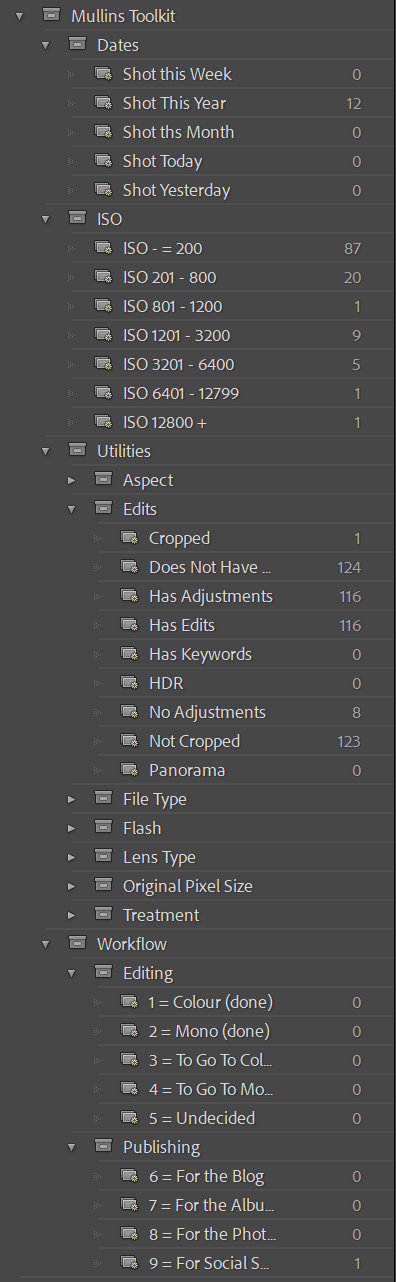
Armoury installs a practical Lightroom Classic Smart Collection set called Mullins Toolkit. These collections are dynamic filters: they do not duplicate photos, move files, or change edits. They simply give you quick views into the catalogue based on metadata, ratings, labels, file type, treatment, edits, and shooting information.
After running Install / Repair, look in Lightroom Classic's Collections panel for Mullins Toolkit. Smart Collections often appear quickly, but if they are not visible, restart Lightroom Classic once.
What is included
| Group | Smart Collections | What they are useful for |
|---|---|---|
| Dates | Shot Today, Shot Yesterday, Shot this Week, Shot this Month, Shot This Year. | Quickly jump back into recent work without building date filters by hand. |
| ISO | ISO <= 200, ISO 201 - 800, ISO 801 - 1200, ISO 1201 - 3200, ISO 3201 - 6400, ISO 6401 - 12799, ISO 12800+. | Review high-ISO frames, compare clean files, or find images that may need extra noise or grain attention. |
| Workflow / Editing | 1 = Colour (done), 2 = Mono (done), 3 = To Go To Colour, 4 = To Go To Mono, 5 = Undecided. | Uses number ratings as a simple editing status system. This works well if you want ratings to mean workflow state rather than quality score. |
| Workflow / Publishing | 6 = For the Blog, 7 = For the Album, 8 = For the Photofilm, 9 = For Social Sharing. | Uses Lightroom colour labels to gather images for common output routes. |
| Treatment | Colour, Black and White. | Separate colour and monochrome work, especially useful after exploring Armoury looks. |
| Lens Type | Prime, Zoom. | Separate prime-lens and zoom-lens work based on lens metadata. |
| Aspect | Horizontal, Vertical, Square. | Useful for layout, blogging, album design, social crops, and sequence building. |
| File Type | Raw, DNG, DNG Copy, JPEG, HEIF, HEIC, TIFF, PSD, PSB, Scans, Video. | Find originals, rendered files, scans, Photoshop files, phone files, and video assets quickly. |
| Flash | Flash, Did not Flash. | Review flash usage across a shoot or separate available-light work from flash work. |
| Original Pixel Size | + 3000 px, - 3000 px. | Find smaller source files or separate higher-resolution originals from lower-resolution assets. |
| Edits | Has Edits, Has Adjustments, No Adjustments, Cropped, Not Cropped, Has Keywords, Does Not Have Keywords, HDR, Panorama. | Audit catalogue housekeeping, find unfinished files, locate keyword gaps, and separate special file types by filename markers. |
Using the workflow collections
The workflow collections are optional to use, but they are powerful if you adopt the rating and colour label system they expect. The Editing set uses star ratings 1 to 5 as edit-status markers. The Publishing set uses colour labels for output destinations.
Editing ratings
- 1 star: Colour done.
- 2 stars: Mono done.
- 3 stars: To go to colour.
- 4 stars: To go to mono.
- 5 stars: Undecided.
Publishing labels
- 6 (Red): For the Blog.
- 7 (Yellow): For the Album.
- 8 (Green): For the Photofilm.
- 9 (Blue): For Social Sharing.
You can still use the other Smart Collections without changing your workflow. The rating-based editing collections are most useful if you want to adopt Armoury's rating-as-status approach.
Registration And Licence
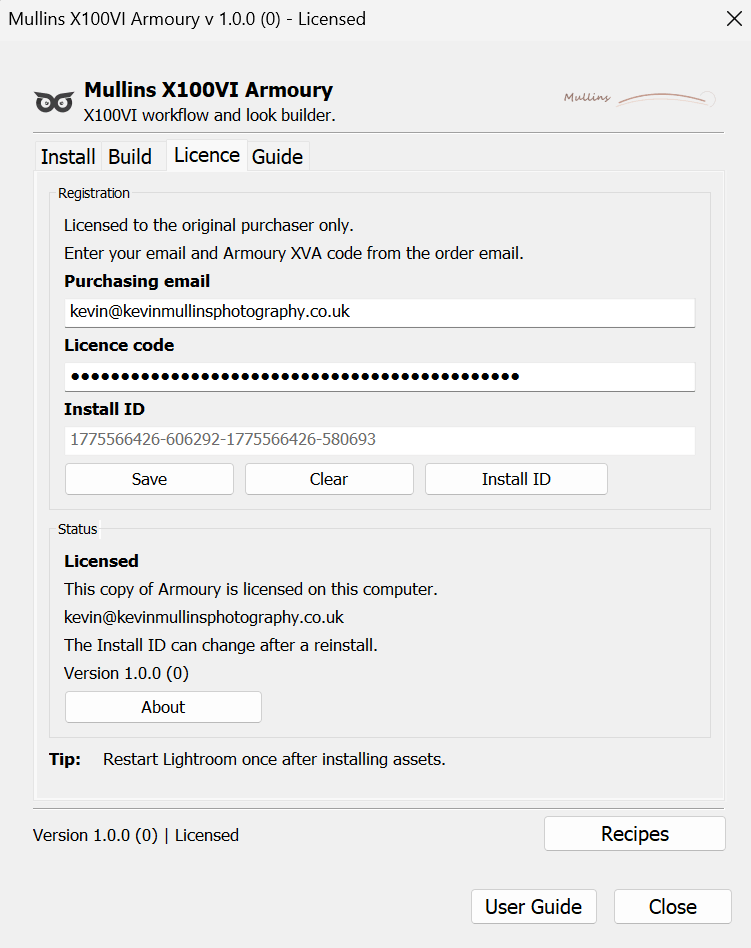
Armoury includes a short trial period so you can get installed and confirm everything is working. To unlock Quick Build permanently, register the plug-in on the Licence tab.
How to register
- Open the Licence tab.
- Enter the purchasing email address from your order.
- Enter the Armoury licence code. Armoury licence codes begin with XVA.
- Click Save.
Useful buttons
Clear removes the saved registration details from this copy of Armoury.
Install ID shows the computer's local install identifier. Include it if support asks for registration details.
About shows the bundled licence and privacy documents.
Quick Build is disabled until the purchasing email and valid XVA licence code are saved. The installed presets, profiles and Smart Collections remain installed in Lightroom Classic.
Quick Build Workflow
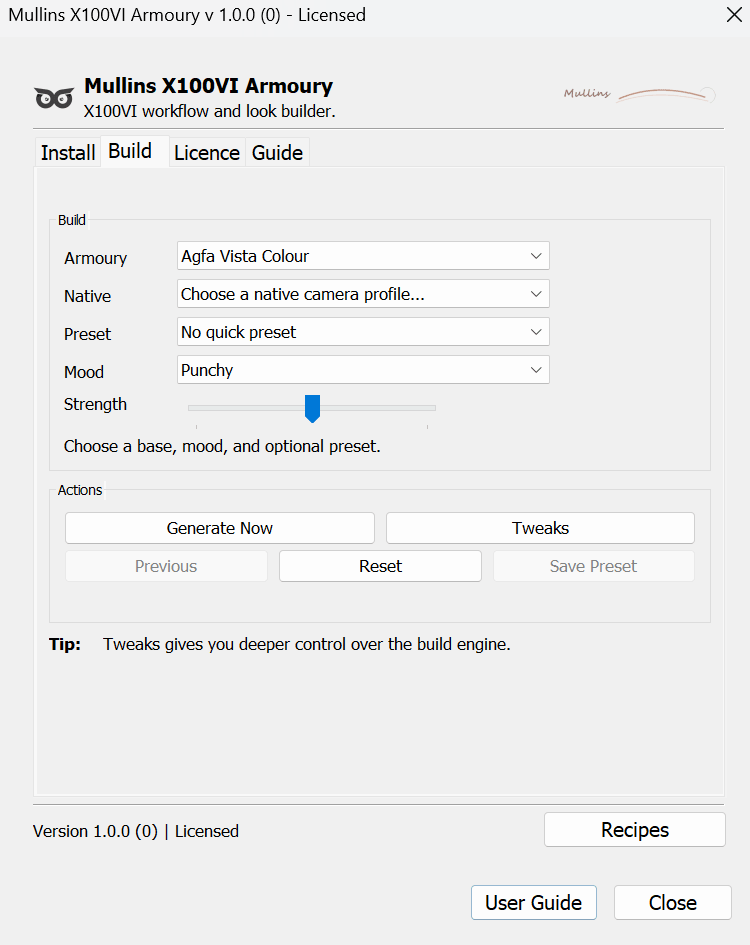
Quick Build is the heart of Armoury. It creates a fresh look on the selected X100VI RAF RAW photo by combining a starting profile with controlled variation across tone, grain, presence, colour, finishing and palette modules.
- Select a Fujifilm X100VI RAF RAW photo in Lightroom Classic.
- Open File > Plug-in Extras > Mullins X100VI Armoury....
- Go to the Build tab.
- Choose either an Armoury profile or a Native camera profile. You can use one or the other as the starting point.
- Choose a Preset if you want a prepared Quick Build tweak recipe, or leave it on No quick preset. This menu is separate from the supplied Colour and Monochrome Lightroom presets.
- Choose a Mood.
- Set Strength. Lower values stay gentler; higher values push the result harder.
- Click Generate Now.
Build controls
| Control | What it does |
|---|---|
| Armoury | Starts from one of the bundled Mullins X100VI Armoury profiles. The list is grouped into Colour and Monochrome. |
| Native | Starts from a Fujifilm camera profile helper, such as Classic Chrome, Classic Neg, Reala Ace, Velvia, Eterna, Acros, Monochrome, or Sepia. |
| Preset | Loads a prepared tweak recipe. Included Quick Presets are True Film, Clean Documentary, Classic Contrast, Punchy Street, Matte Soft, and Vintage Fade. Changing a managed tweak switches this menu to Custom. |
| Mood | Steers the generator. Available moods are Balanced, Clean, Punchy, Soft, Vintage, Cinematic, Dreamy, and Gritty. |
| Strength | Controls how boldly Armoury leans into the generated result. |
Actions
| Button | Use it when... |
|---|---|
| Generate Now | You want Armoury to create and apply a fresh look to the selected X100VI RAF RAW photo. |
| Tweaks | You want deeper control over the build engine before generating another look. |
| Previous | You want to step back through looks generated during the current Armoury session. This is separate from Lightroom Classic Undo. |
| Reset | You want to restore the photo to the Develop settings Armoury captured before you started generating looks in the current session. |
| Save Preset | You like the current result and want to save it as a local Lightroom Classic preset. |
Quick Build is non-destructive in the Lightroom sense, but it does change the selected photo's Develop settings. If you want to preserve an existing edit, make a virtual copy before generating looks.
Tweaks
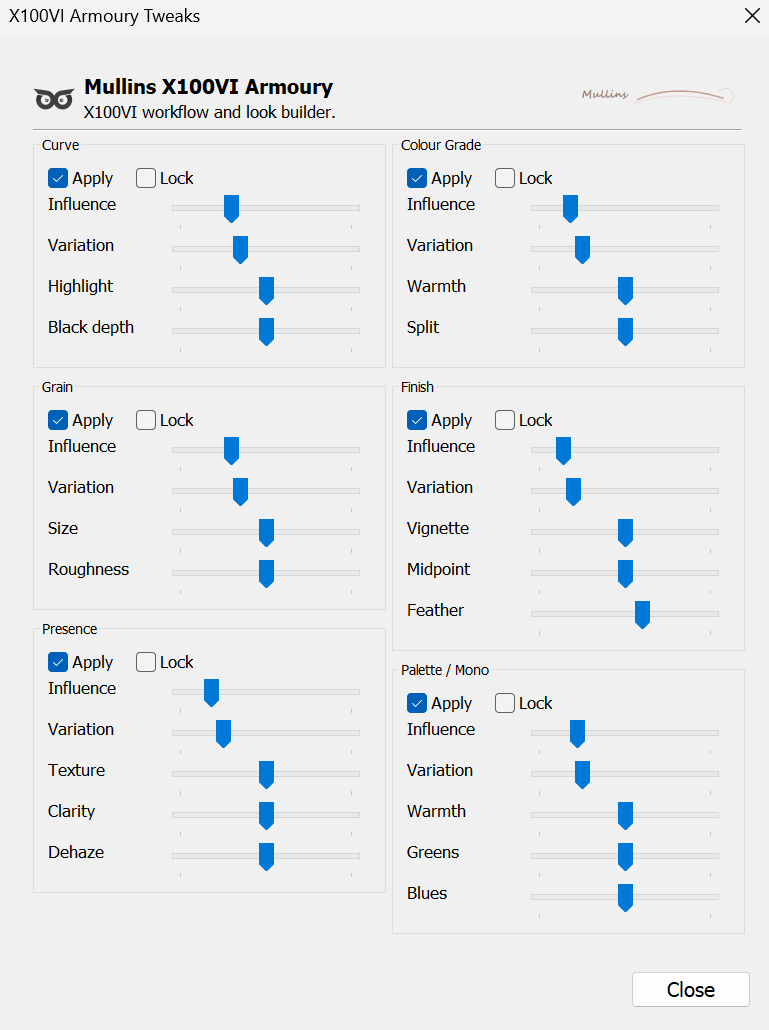
The Tweaks window gives you control over the modules Armoury uses when generating a look. Use it when you like the general direction but want to steer the engine more precisely.
Apply and Lock
Apply
Includes that module in the next Quick Build result. If Apply is turned off, the module is bypassed.
Lock
Keeps the current module result fixed while other modules continue to vary. Turn Apply on before using Lock.
Tweak modules
| Module | Controls | How to think about it |
|---|---|---|
| Curve | Influence, Variation, Highlight, Black depth | Overall tone, contrast, highlight roll-off, and black point character. |
| Grain | Influence, Variation, Size, Roughness | How present, fine, coarse, smooth, or rough the grain treatment feels. |
| Presence | Influence, Variation, Texture, Clarity, Dehaze | Detail, midtone structure, haze, atmosphere, and perceived crispness. |
| Colour Grade | Influence, Variation, Warmth, Split | The colour grading contribution, from subtle warmth to stronger shadow/highlight separation. |
| Finish | Influence, Variation, Vignette, Midpoint, Feather | Edge shaping and final polish. |
| Palette / Mono | Influence, Variation, Warmth, Greens, Blues | Colour palette shaping for colour looks, or channel interpretation for monochrome looks. |
Start with a Quick Preset, generate a look, then open Tweaks and adjust one module at a time. If one part of the look is working, lock it and keep exploring the other modules.
Recipe Roulette
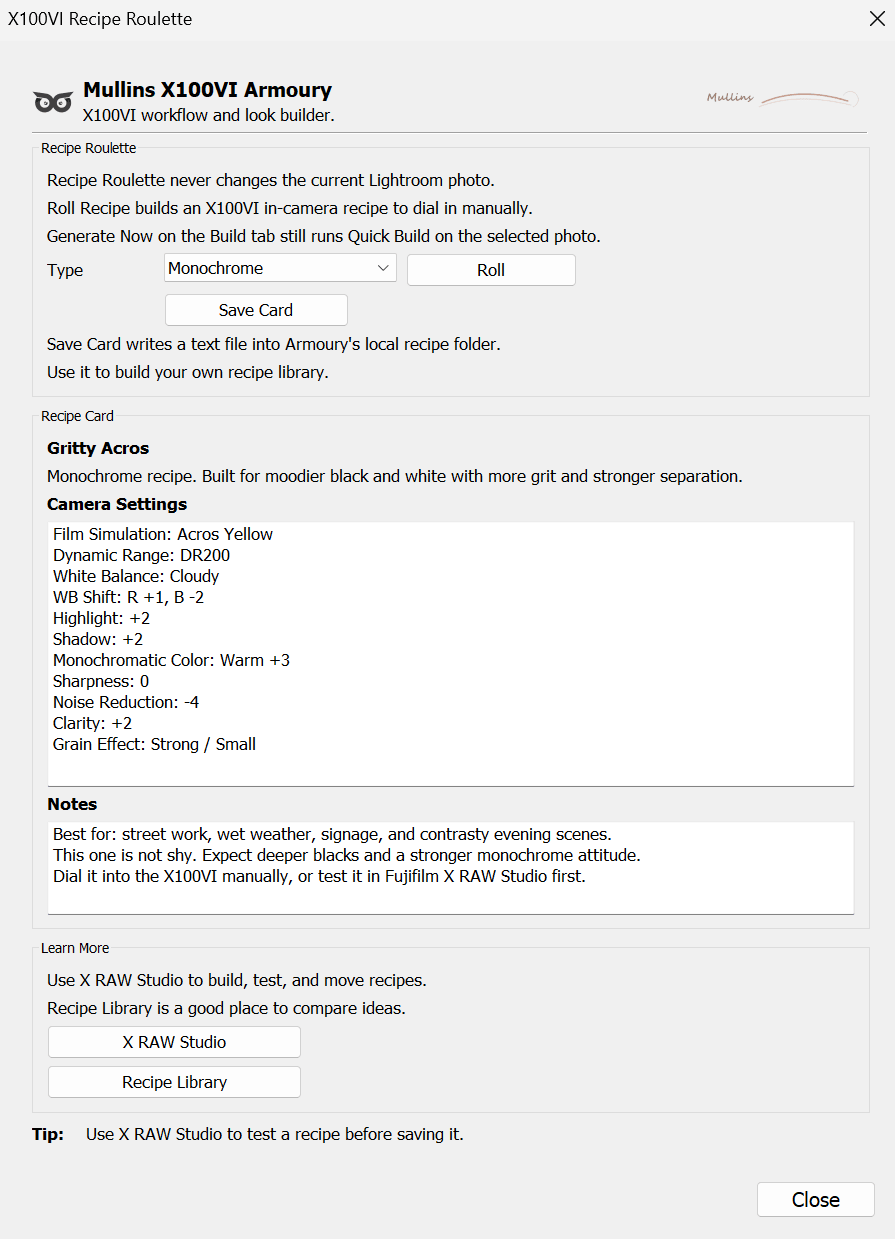
Recipe Roulette creates Fujifilm X100VI in-camera JPEG recipe ideas. These recipes are intended to be dialled into the camera manually or tested first in Fujifilm X RAW Studio.
Rolling recipes never changes the current Lightroom Classic photo. It only generates recipe text.
- Click Recipes in the footer of the Armoury window.
- Choose Any, Colour, or Monochrome.
- Click Roll.
- Read the generated camera settings and notes.
- Click Save Card if you want to save the recipe as a text file.
Recipe cards can include
- Film Simulation
- Dynamic Range
- White Balance
- WB Shift
- Highlight
- Shadow
- Color or Mono Color
- Sharpness
- Noise Reduction
- Clarity
- Grain Effect
- Color Chrome Effect
- Color Chrome FX Blue
Colour recipe families include calmer chrome looks, punchier street colour, soft portrait colour, nostalgic slide-inspired colour, and cooler blue-hour ideas. Monochrome families include clean Acros, grittier Acros, softer monochrome, documentary monochrome, and warmer black and white ideas.
Saving Your Work
Save a Quick Build look
After generating a look, click Save Preset. Armoury suggests a preset name and writes the preset into the Lightroom Classic local preset group called Mullins X100VI Armoury Saved Looks.
If the saved preset does not appear straight away, restart Lightroom Classic and check again.
Save a recipe card
After rolling a recipe, click Save Card. Recipe cards are saved as text files in your documents area under Mullins X100VI Armoury Recipe Cards.
If a filename already exists, Armoury creates a numbered filename rather than overwriting the older card.
Suggested working habits
- Create virtual copies before testing looks on important edits.
- Use Previous for stepping back through looks in the current Armoury session.
- Use Reset to return to the Develop state captured when you began generating on that photo.
- Save presets only for looks you expect to reuse.
- Save recipe cards when you want to build a personal X100VI recipe library.
Troubleshooting
Most issues come down to one of four things: assets have not been installed, Lightroom Classic has not been restarted, the selected file is not an X100VI RAF RAW file, or the trial has ended.
| Problem | Likely cause | What to do |
|---|---|---|
| Generate Now is disabled | Assets are not installed, the trial has ended, no compatible photo is selected, or no starting profile has been chosen. | Run Install / Repair, restart Lightroom Classic, select an X100VI RAF RAW file, register on the Licence tab if required, and choose an Armoury or Native profile. |
| Armoury says RAF RAW Required | The selected X100VI photo is not a RAF RAW file, or Lightroom Classic cannot confirm the RAF file type. | Select the original X100VI .RAF file. JPEGs and other rendered files are not Quick Build targets. |
| Armoury says X100VI RAF Required | The selected file appears to be from another camera, or it does not expose X100VI camera metadata to Lightroom Classic. | Select a Fujifilm X100VI RAF RAW photo and reopen or refresh the plug-in. |
| Profiles or presets are missing after install | Lightroom Classic has not fully reloaded the installed assets yet. | Quit and reopen Lightroom Classic. If assets are still missing, run Install / Repair again. |
| Mullins Toolkit Smart Collections are not visible | The Collections panel has not refreshed, the collection set is collapsed, or the install did not complete. | Check the Collections panel for Mullins Toolkit, expand the collection set, restart Lightroom Classic, and run Install / Repair again if needed. |
| Install failed | Lightroom Classic could not copy one of the bundled folders into the Camera Raw settings area, or a bundled folder is missing. | Make sure the full .lrplugin folder is present, then run Install / Repair again. If it still fails, note the exact error and contact support. |
| Saved preset is not visible | Lightroom Classic has not refreshed local presets yet. | Restart Lightroom Classic and look for Mullins X100VI Armoury Saved Looks. |
| Previous does nothing | There is not enough generation history in the current session. | Generate at least two looks on the same photo during the current Armoury session. |
| Reset is disabled | Armoury has not captured an original Develop snapshot for the current compatible photo. | Select an X100VI RAF RAW photo and generate a look first. For wider history control, use Lightroom Classic's own History or Undo features. |
| Licence code does not validate | The email and XVA code do not match, the code was mistyped, or the wrong order email was used. | Use the purchasing email from the order email and the full Armoury XVA code. If you cannot find it, contact support with your order details. |
| Recipe card will not save | Lightroom Classic cannot write to the documents folder. | Check folder permissions and available disk space, then try Save Card again. |
Include your operating system, Lightroom Classic details, the exact warning message, whether the selected file is an X100VI RAF RAW file, and your Install ID if the issue is registration-related.
FAQ
Does Quick Build permanently alter my RAW file?
No. Lightroom Classic edits are non-destructive. Quick Build changes Lightroom Develop settings for the selected photo, but it does not rewrite the original RAF file.
Can I use Quick Build on JPEGs from the X100VI?
No. Quick Build is for X100VI RAF RAW files only. Recipe Roulette can still be used for JPEG recipe ideas.
Can I use Armoury with another Fujifilm camera?
This plug-in is built for Fujifilm X100VI RAF RAW files. Other camera models are not supported Quick Build targets.
What is the difference between Armoury and Native?
Armoury profiles are the bundled Mullins look profiles. Native profiles use Fujifilm-style camera profile helpers as the starting point. Choose one route as the base for the generated look.
What does Custom mean in the Preset menu?
Custom appears when you change one of the tweak controls managed by a Quick Preset. It simply means the current tweak setup no longer exactly matches one of the named quick presets.
Why do I need to restart Lightroom Classic after installation?
Lightroom Classic often needs a restart before new profiles and presets are fully loaded. Smart Collections may appear sooner, but restarting is the reliable finish to installation.
Should I use Reset or Lightroom Undo?
Use Reset when you want Armoury to restore the Develop state it captured before generating looks on the current photo. Use Lightroom Classic Undo or History when you want Lightroom's own edit history controls.
Where are saved recipe cards?
They are saved as text files in your documents area inside a folder named Mullins X100VI Armoury Recipe Cards.
Where are saved Quick Build presets?
They are saved into the Lightroom Classic local preset group named Mullins X100VI Armoury Saved Looks.
Quick Reference
Best first run
- Install / Repair.
- Restart Lightroom Classic.
- Select X100VI RAF RAW.
- Open Build.
- Choose base, preset, mood, strength.
- Generate Now.
If a look is too strong
- Lower Strength.
- Choose Clean, Soft, or Balanced mood.
- Use a gentler Quick Preset.
- Open Tweaks and reduce module influence.
If a look is too quiet
- Raise Strength.
- Choose Punchy, Cinematic, Vintage, Dreamy, or Gritty mood.
- Try Punchy Street or Classic Contrast.
- Increase Curve, Presence, Grain, or Palette influence in Tweaks.
Support
If you’re stuck, send me a quick message using this form, and I’ll help you get it sorted.
The more detail you can share, the faster I can diagnose it.
If it’s a licensing issue, your purchasing email and Install ID are the key bits.
If it’s a “something isn’t working” issue, a screenshot of the plugin window and your Lightroom version usually gets us to the answer quickly.