My new Lightroom Classic plugin for infinite black and white looks
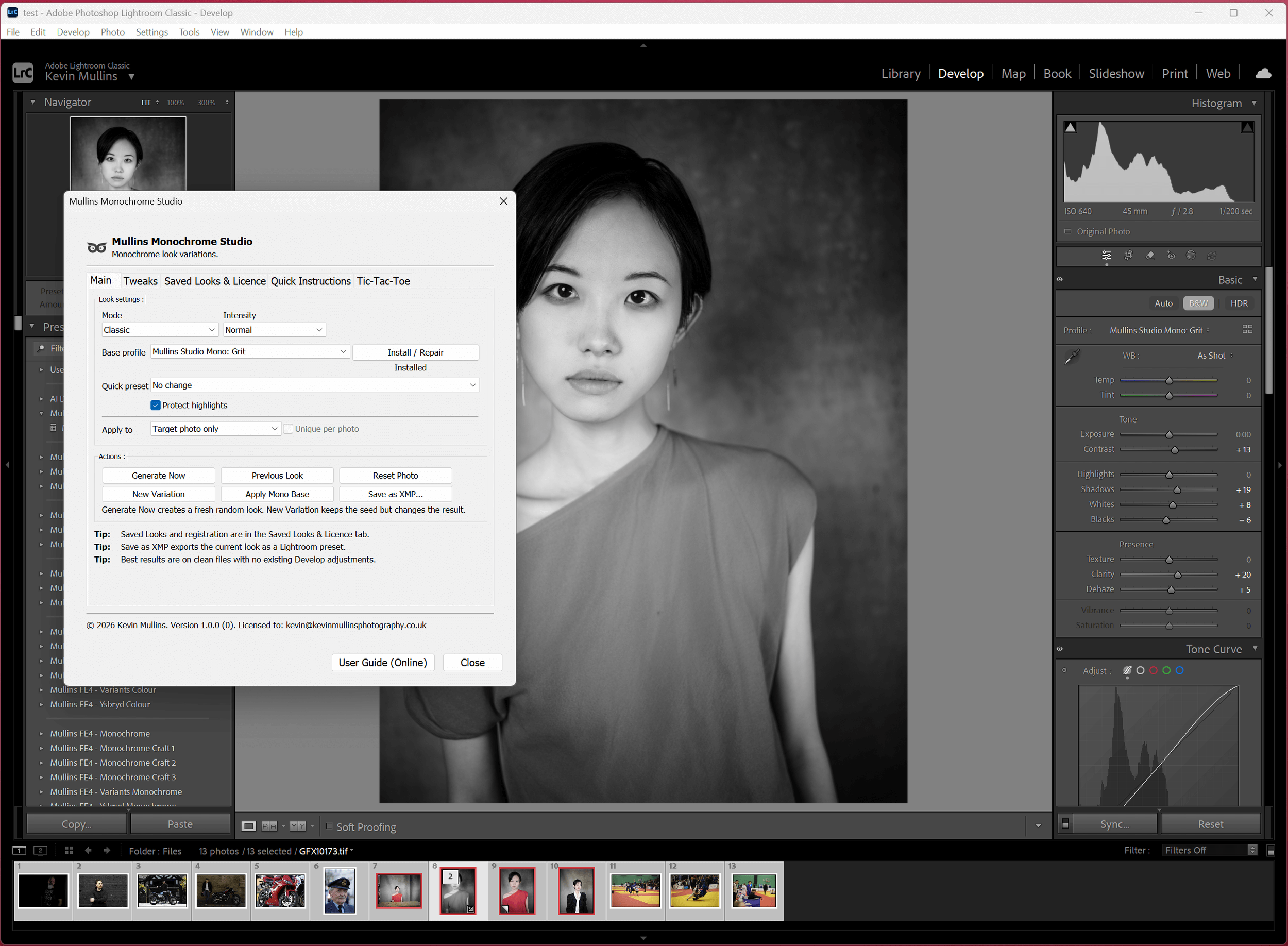
Mullins Monochrome Lightroom Plugin
If you’re anything like me, you can spend a silly amount of time nudging sliders around, chasing a black and white look that feels right. Some days it’s fun. Other days, you just want to get to a finished photo quickly.
So I built Mullins Monochrome Studio, a Lightroom Classic plugin that creates an infinite amount of fresh monochrome looks in seconds, using real Develop settings. It’s non-destructive, it’s quick, and it’s designed for photographers who want options without making all the time-consuming choices.
See it in Action
A quick walkthrough of Mullins Monochrome Studio inside Lightroom Classic:
What this article covers
What Monochrome Studio actually does
A 60-second workflow: Generate, refine, lock, repeat
How saving works (and how to export XMP presets)
Compatibility, licensing, and setup
FAQs (plus schema, so Google can understand it properly)
Get Mullins Monochrome Studio
If this looks like your sort of thing, you can grab it here. You’ll get the download straight away, and your licence arrives separately by email.
Quickly, What does it do?
If you just want the basics:
It’s for Lightroom Classic (desktop) only, version 10 or later.
It works on Mac and Windows.
It’s not compatible with Lightroom (cloud) or mobile.
You can save looks inside the plugin, and you can also export them as XMP presets.
It generates looks using real Develop settings, so everything is reversible.
That’s the summary. The rest of this post is the “show me how it feels” part.
Why I built this Lightroom Plugin
I’ve edited an absurd number of photos over the years, and monochrome has always been a big part of how I see. But I also know what it’s like to hit that wall where you’re bored with your own patterns.
Presets are great (I sell them, I use them), but sometimes you don’t want a preset. You want discovery. You want a tool that really helps, but still lands inside a sensible range, so you’re not fixing the mess afterwards.
Monochrome Studio is basically that: a fast way to explore, find something you perhaps didn’t expect, then keep the bits you love.
What Mullins Monochrome Studio does
You press a button and it creates a new monochrome look instantly.
Not a fake overlay, not a destructive filter, and not some separate editing external application. It’s using Lightroom’s own controls and settings, so your edit sits exactly where you’d expect it to sit.
You can then:
generate a brand new look,
create variations of a look you already like,
lock parts of the look so they don’t change,
tweak things manually if you want,
save the look inside the plugin,
and export it as an XMP preset if you want it as a “proper” Lightroom preset.
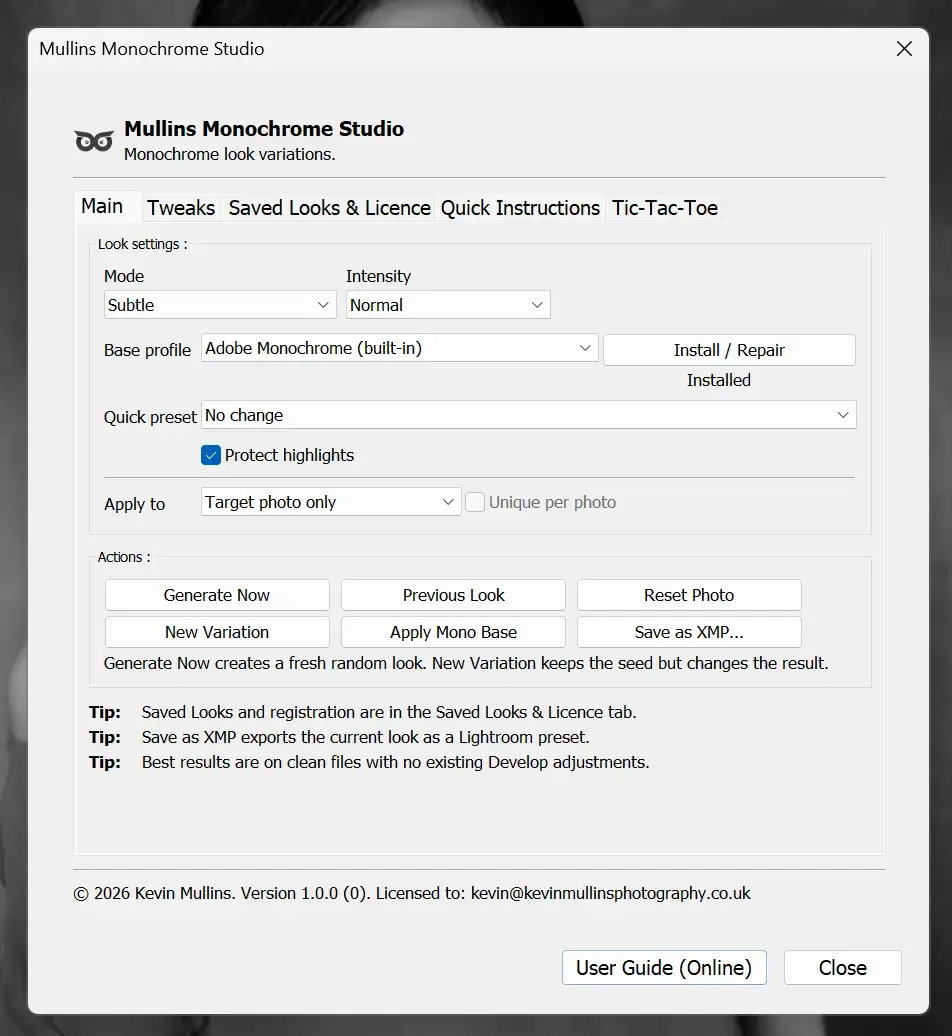
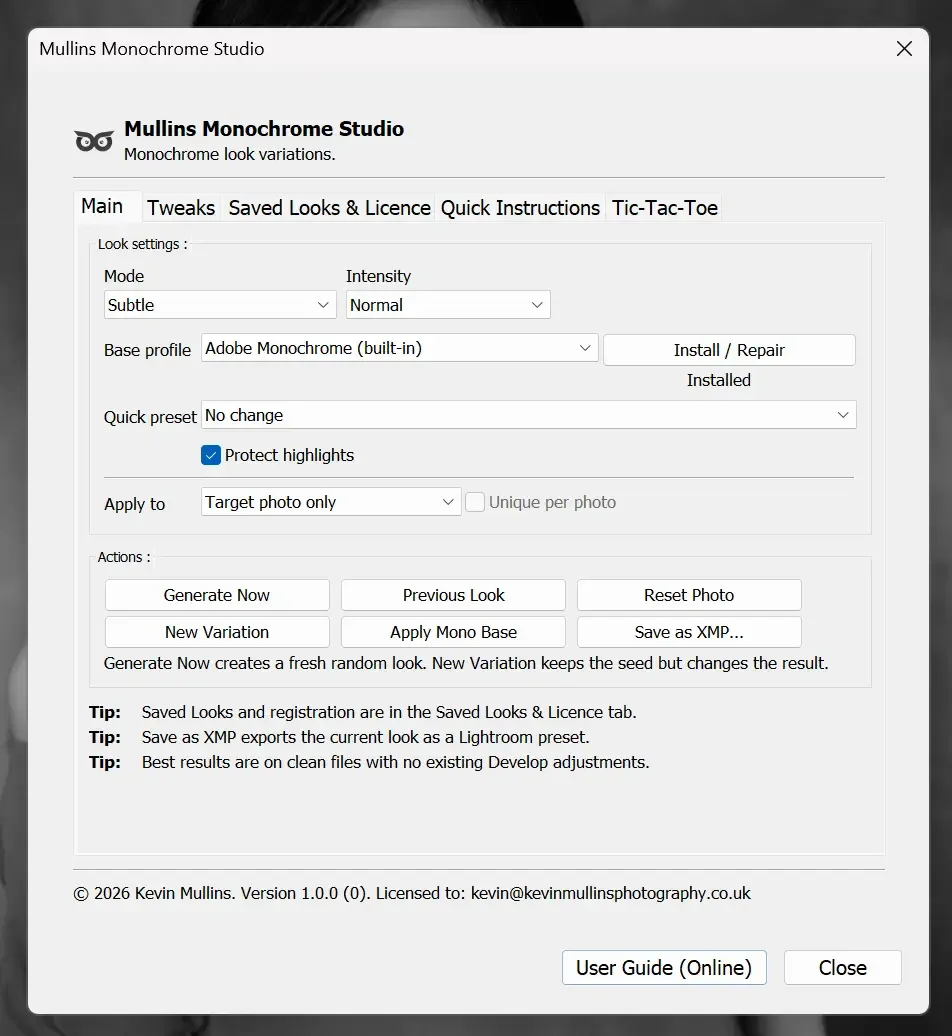
Screenshot of the Main tab with Generate Now visible
The 60-second workflow (this is how I actually use it)
This is the simple route.
Pick a photo in Lightroom Classic.
Open Monochrome Studio.
Click Generate Now.
If you like the direction, click New Variation.
If you love one element (tone, contrast, grain, whatever), lock it and generate again.
When you hit something that feels like “you”, save it.
That’s it.
And yes, you can still do your normal Lightroom editing around it. The plugin isn’t trying to replace your entire workflow. It’s just trying to get you to interesting places faster.


Get Mullins Monochrome Studio
If this looks like your sort of thing, you can grab it here. You’ll get the download straight away, and your licence arrives separately by email.
Locks: the part that makes it feel controlled, not random
I was really keen that this didn’t feel like a tool that gambled with settings.
The “randomness” is deliberate, but it’s not chaos. Locks are what turn it from “fun toy” into a proper tool.
A few examples of how you might use locks:
Lock the overall tone so the photo keeps its mood, then explore contrast and texture.
Lock grain if you’ve found a texture you like, then vary everything else around it.
Lock blacks and whites if you’ve nailed your endpoints, then let it experiment in the middle.
The best results tend to come from a bit of back-and-forth. Generate, lock one thing, generate again. It’s surprisingly addictive.
Saving looks vs exporting XMP presets
This catches people out, so I’ll be really clear.
Monochrome Studio can save looks inside the plugin. Think of these as your own “little library” that lives with the tool.
If you want a look as a traditional Lightroom preset you can apply anywhere, that’s where Save as XMP comes in. That exports the current look as an XMP preset you can install like any other preset.

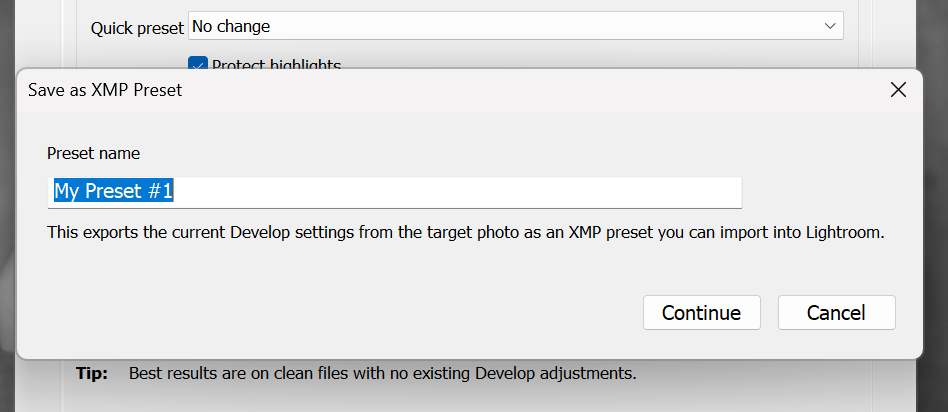
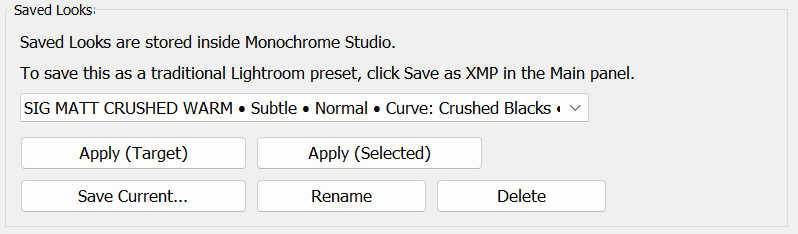
Screenshots showing how to save as an XMP Preset, and save a look inside the studio.Non-destructive, sensible, and easy to undo
Everything this plugin does is non-destructive because it’s using Lightroom’s native editing system.
If you don’t like the result, you can:
hit reset,
use a snapshot,
step back in history,
or just generate again.
It’s very low-risk experimenting. That was the whole point.
Can it really generate an infinite amount of looks?
“Infinite” is a slightly cheeky word, so I’ll be straight with you. In the strict, mathematical sense, no. The plugin is working inside Lightroom’s real-world controls, so it’s always choosing from a finite set of settings.
But in practical use, it behaves like it’s infinite.
The reason is simple: you’ve got lots of settings that can shift in small ways, and they combine with each other. Then you add the photo itself (a backlit street scene behaves differently to a flat portrait), plus the fact you can lock parts of a look and force the plugin to build around them. That combination means you can keep exploring without hitting the same “six looks on repeat” feeling.
Also, the “New Variation” button matters here. Generate Now gives you a fresh direction. New Variation keeps you in the same family, but nudges it enough that you can find a version that feels like you would have made it yourself, just faster.
So yeah, it’s not literally infinite. But it’s close enough that you’ll run out of patience long before it runs out of ideas.
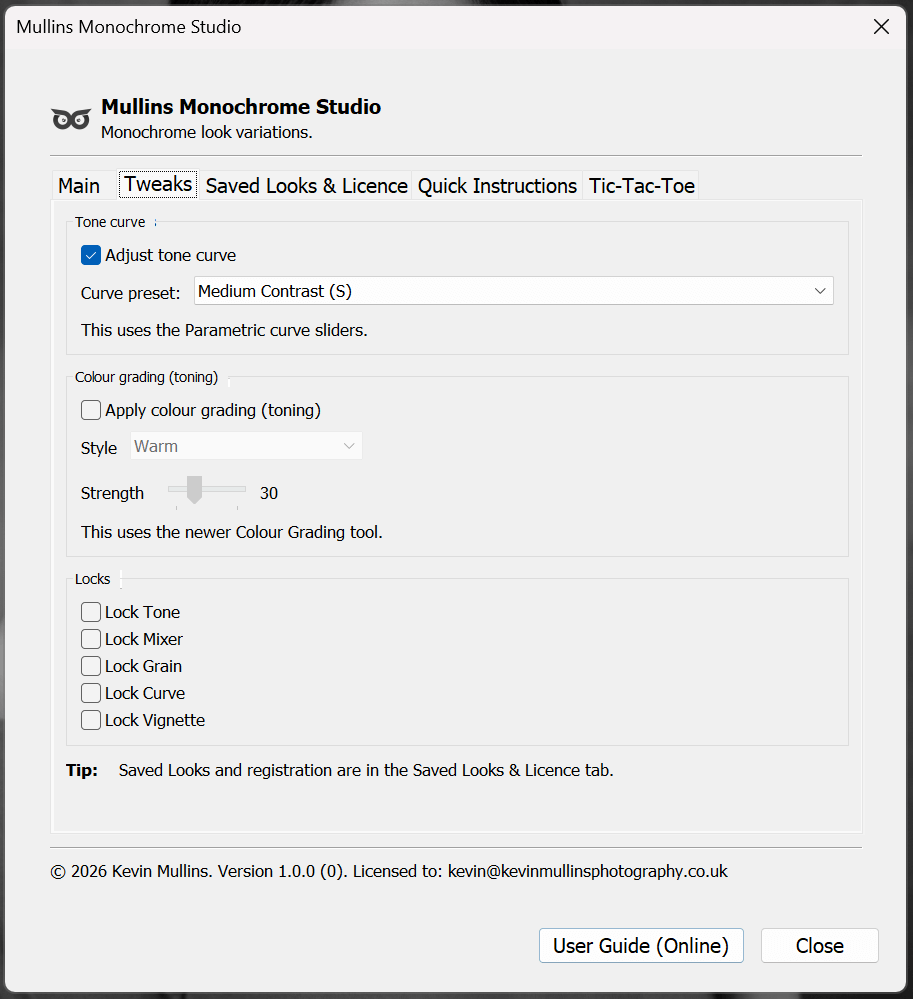
The Tweaks Tab allows you to practically build an infinite amount of black and white looks
Compatibility, install, and licensing
Here’s the practical stuff:
| Item | Details |
|---|---|
| Lightroom version | Lightroom Classic v10 or later (desktop app) |
| Platforms | Mac and Windows |
| Not compatible with | Lightroom (cloud) and mobile |
| Licence | 2 computers |
| Updates | Free updates for 1 year |
| Support | Lifetime support |
📖You can see the full User Guide Here.
Where does this fit alongside my presets?
If you already use my Lightroom presets, Monochrome Studio isn’t trying to replace them.
Presets are brilliant when you want consistency and speed. Monochrome Studio is for those moments when you want to explore. Different tools, different moods.
And just to head off the obvious question: yes, it works with files from any camera, not just Fujifilm.
Links and resources
FAQ
-
No. It’s built for Lightroom Classic (desktop) only.
-
Version 10 or later.
-
Yes. It uses Lightroom’s own Develop settings, so you can undo, reset, snapshot, or just generate again.
-
Yes. You can save looks inside the plugin, and you can also export the current look as an XMP preset.
-
Yes, both.
-
Two computers per licence.
-
Yes. Free updates for one year.
-
Probably, yes. It’s more about exploration than applying a fixed style.
Get Mullins Monochrome Studio
If this looks like your sort of thing, you can grab it here. You’ll get the download straight away, and your licence arrives separately by email.