

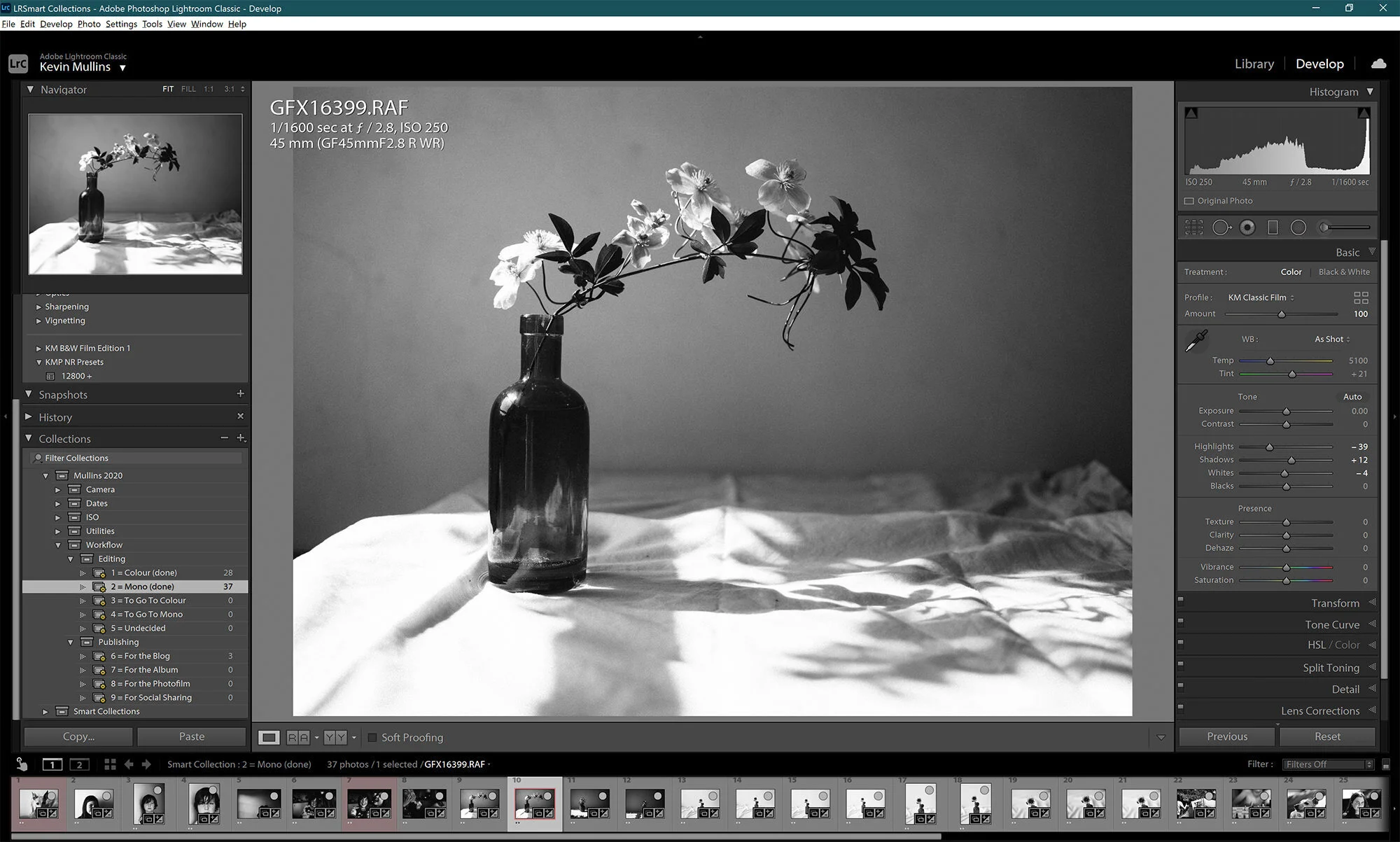
How To Use Lightroom Smart Collections Properly
A 20-minute mini-course to organise faster, edit smarter, and stop hunting through endless folders.
Smart Collections in Lightroom Classic are incredibly powerful, but most photographers barely scratch the surface.
In this short, practical course, I walk you through the exact Smart Collection system I use in my own workflow, so you can find the right images in seconds and keep your catalogue under control – without adding complexity.
You can also download the smart collections and use them instantly.
Turn Lightroom into a workflow that thinks for you
If you have thousands of images spread across weddings, family shoots, personal work or commercial jobs, the real challenge is not editing – it is finding what you need, when you need it.
In just 20 minutes, I show you how to build a Smart Collection structure that:
Keeps your cameras, dates, file types and ISO ranges neatly organised.
Shows you which images still need work and which are finished.
Helps you quickly pull out blog images, album selects, panoramas and social media picks.
Lets you apply noise reduction and other presets in a logical, repeatable way.
This is the exact system I use in my own business, refined over many years of real client work.
Inside the Lightroom Smart Collections mini-course
-
Smart vs regular collections
How Collections and Smart Collections actually work, and why Smart Collections are more like “playlists on steroids” than simple folders.
-
Building a clean Smart Collection structure
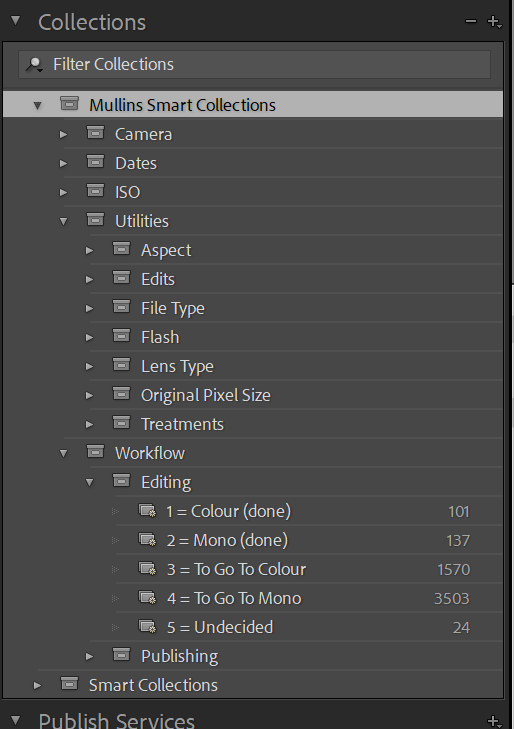
Creating nested sets such as Cameras, Dates, ISO, Utilities and Workflow, so everything lives in a logical place rather than one long messy list.
-
Camera-based Smart Collections
Setting up collections that automatically gather images from specific camera bodies or systems, which is especially useful if you use multiple Fujifilm bodies or different sensor generations.
-
Date-driven sets so you can find shoots quickly
Smart Collections such as “Shot this week”, “Shot this month”, “Shot this year” and “Older than this year” to pull up recent work or older archives in a click.
-
Utilities that do the boring hunting for you
Collections for things like “No adjustments applied”, “Has adjustments”, “Cropped”, “Panoramas”, “RAW only”, “JPEG only” and “Scans”, so you can tidy and finish work without manual searching.
-
Prime vs zoom, lighting, orientation and more
Clever ways to filter images by lens type, whether flash fired or not, horizontal vs vertical vs square images, and even pixel size for commercial jobs.
-
ISO-based workflow and noise reduction
Grouping images into ISO ranges (for example 200 and under, 201–800, 801–3200, 6400+ etc.) and applying the right noise reduction presets to each range in bulk.
-
My rating and colour-label workflow
How I use the number keys to move images through stages such as “to edit in colour”, “to edit in mono”, “finished”, “for the blog”, “for albums”, “for social” and so on, all tied to Smart Collections that update automatically.
What you get when you enrol
20-minute step-by-step training
A clear, no-fluff walkthrough filmed inside Lightroom Classic, showing you exactly how to build and use the system.Complete Smart Collections download
You get my full Smart Collections set as a download, so you can import it into your own catalogue and then tweak it to suit your workflow.Unlimited lifetime access
Watch as many times as you like, whenever you need a refresher or you are setting up a new catalogue.Built for real-world photographers
The system is designed around busy working photographers – especially wedding and documentary shooters – but it is just as useful for family and personal work.
Subscribe to get access now
Lifetime access to this focused 20-minute mini-course where Kevin walks you, step by step, through a powerful Smart Collections system in Lightroom Classic. Learn how to automatically group images by camera, date, ISO and edit status, import Kevin’s complete Smart Collections set, and start finding the right photos in seconds instead of hunting through folders.

Who is this mini-course for?
This is a good fit if:
You use Lightroom Classic and have more than a handful of shoots in your catalogue.
You are tired of scrolling through folders trying to find panoramas, high-ISO images or blog favourites.
You want a simple, repeatable workflow for weddings, families, events or personal projects.
You like the idea of Lightroom doing the heavy lifting for you instead of relying on memory and manual searching.
You do not need to be a Lightroom “power user”.
If you can navigate the Library and Develop modules, you will be fine.
Lightroom Smart Collections Online Course – FAQs
-
The course is recorded in Lightroom Classic. The ideas are transferable, but you will get the most from it if you use Classic on desktop.
-
Yes. Most photographers use Smart Collections in a very basic way. This mini-course shows you how to build a complete system that covers cameras, dates, ISO, editing stages, blog and album selects and more, so everything works together rather than as standalone one-offs.
-
You do. You get the full set that I demonstrate in the video as a download, which you can import and adapt for your own catalogue.
-
The video itself is around 20 minutes. Most people can import the Smart Collections and have the system up and running in less than an hour, even if they are tidying up an existing catalogue at the same time.
-
You get lifetime access to the video and download, so you can come back to it any time you change systems, move catalogues or simply want a refresher.