

 Image 1 of 3
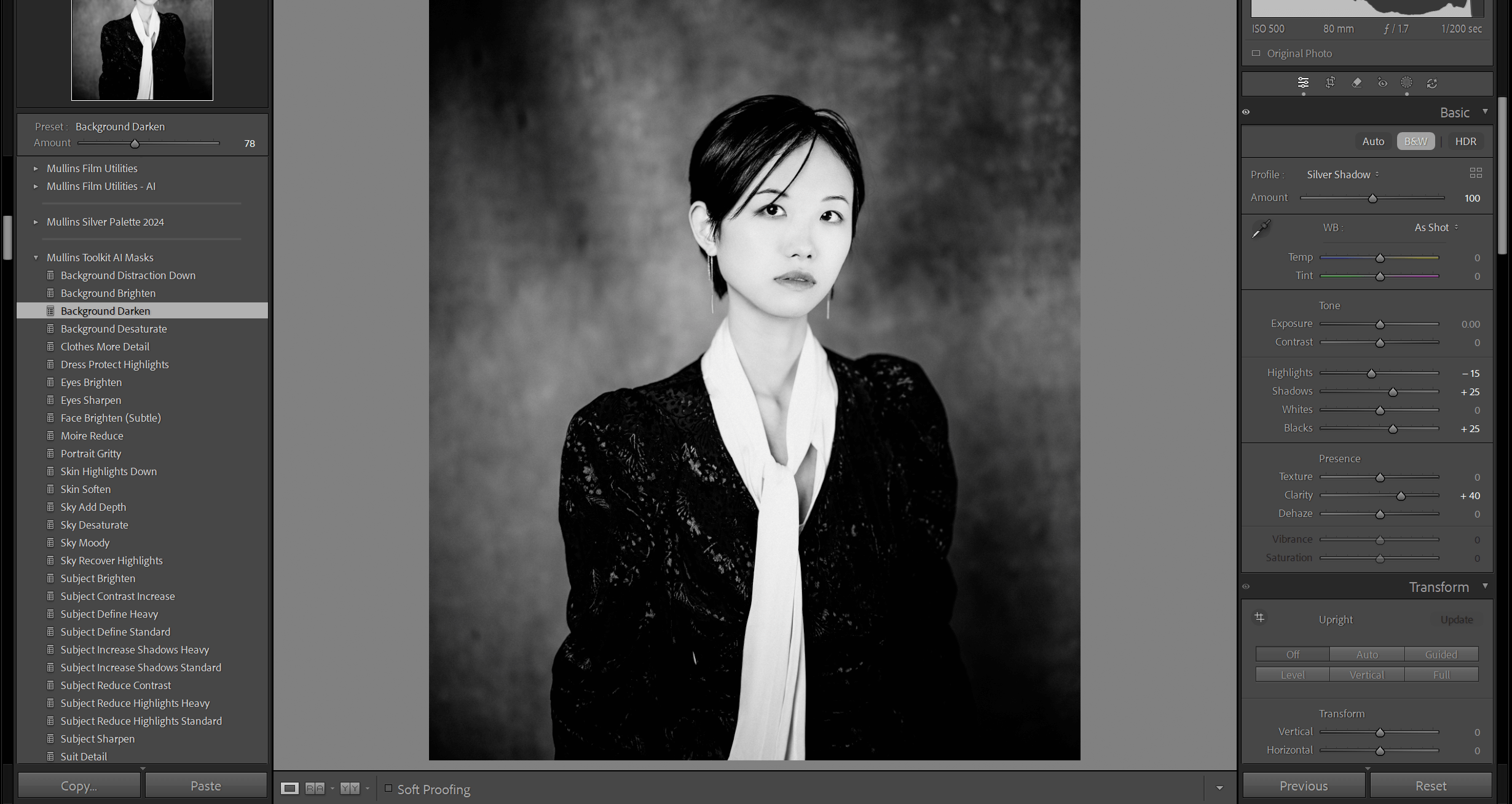 Image 2 of 3
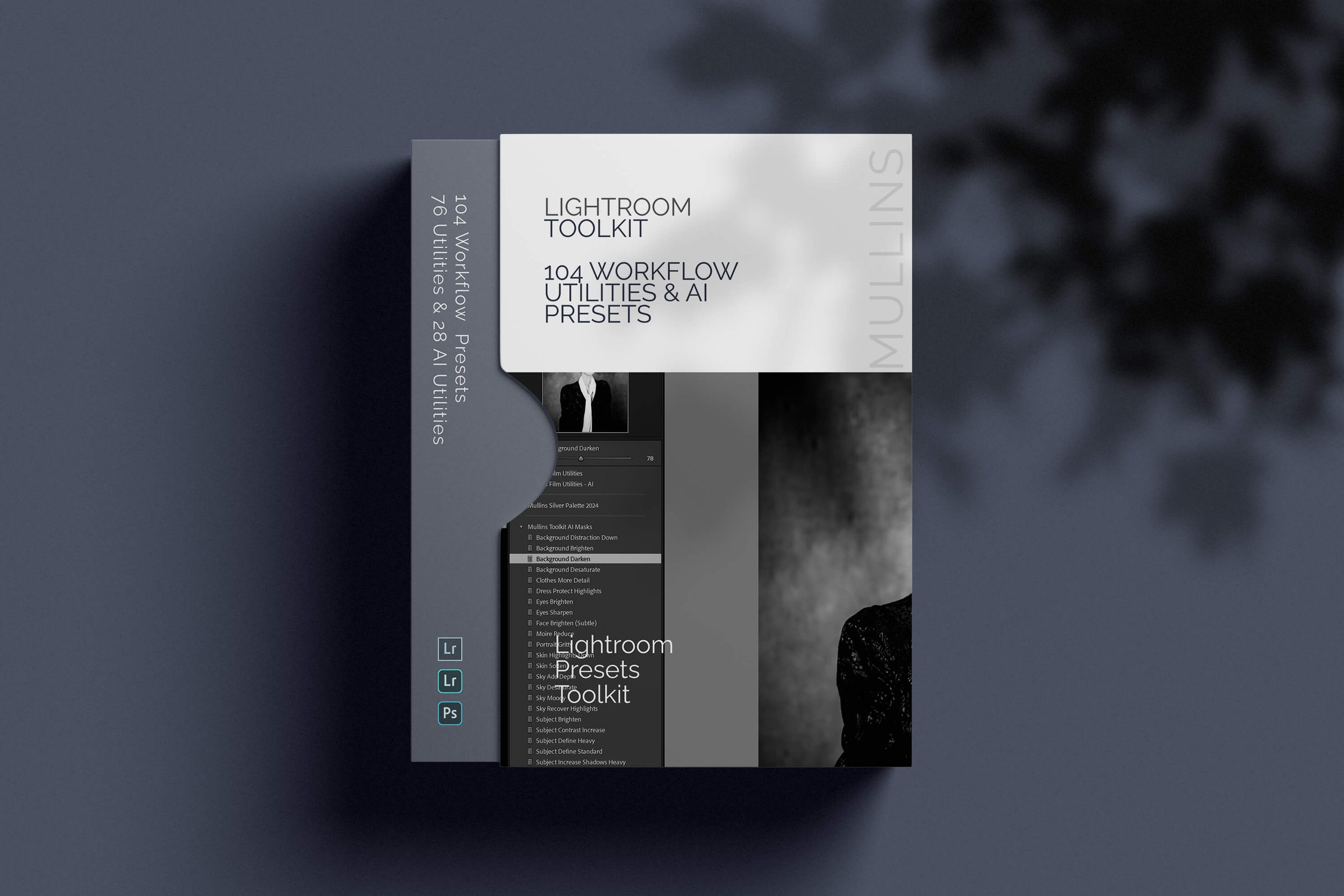 Image 3 of 3
Mullins Lightroom Toolkit (Utility Presets + AI Mask Tools)

Mullins Lightroom Toolkit
Mullins Lightroom Toolkit is a practical set of utility presets designed to speed up editing, improve consistency, and reduce repetitive manual adjustments. It is not a film preset pack or a one-click “style” product. Instead, it provides focused tools that can be applied individually or stacked to build an edit in clear stages.
The Toolkit includes 104 presets organised into structured clusters, covering base corrections, tone and curve shaping, grain, sharpening, noise reduction, colour helpers, and finishing tools. A large portion of the set is built around Lightroom’s AI Masking workflow for fast subject, sky, and background adjustments.
Purpose
The Toolkit is designed to support an efficient, repeatable workflow. Each preset focuses on a specific adjustment, allowing edits to be built in layers. This is particularly useful when editing large sets of images where speed and consistency matter.
- Base correction tools to establish a clean starting point.
- Tone and curve tools to control contrast and highlight roll-off.
- Grain tools designed to sit naturally within a finished edit.
- Sharpening and noise reduction tools for common shooting conditions.
- AI Mask tools for faster background, sky and subject adjustments.
- Colour helpers and finishers for final refinement.
These presets are designed to be stacked. They can be used individually, or combined as a simple editing chain depending on the image.
Clear organisation for fast access
The Toolkit is grouped into named clusters so related tools stay together in the Presets panel. The structure follows a typical editing flow, which reduces time spent searching and helps maintain a consistent approach across a set.
AI Masks (28)
Background, subject, sky and portrait tools using Lightroom’s AI Masking.
Base and Fixes (20)
Starting points and corrective tools for common colour and exposure issues.
Utilities (16)
Practical mid-edit tools for density, warmth, vignettes, and tonal options.
Tone and Curves (10)
Curve shapes for contrast control, fades, punch, and highlight behaviour.
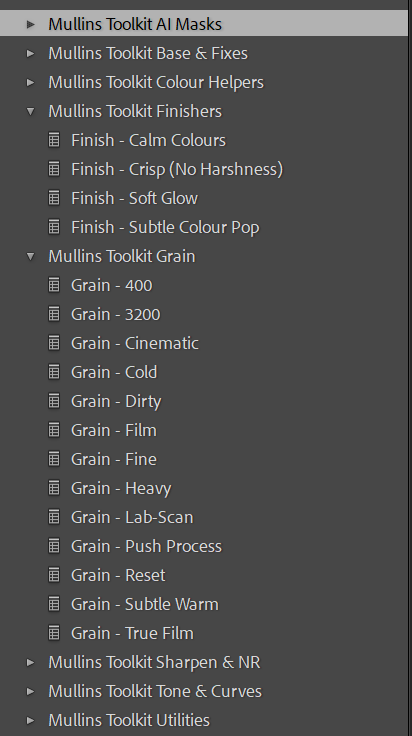
Grain (13)
A range of grain styles from subtle to heavy, plus a reset option.
Sharpen and NR (9)
Sharpening presets for RAW files and noise reduction tools by ISO range.
Colour Helpers (4)
Targeted colour controls for blues, greens and reds.
Finishers (4)
Final refinements for a calmer, cleaner, more intentional finish.


Included presets (by cluster)
A typical workflow is to apply a Base and Fix preset first, then shape contrast using Tone and Curves, add Grain where appropriate, and finish with Sharpen and NR and a Finisher. AI Masks can be used at any point when local adjustments are required.
AI Masks (28) - local tools using AI Masking
- Background Brighten
- Background Darken
- Background Desaturate
- Background Distraction Down
- Clothes More Detail
- Dress Protect Highlights
- Eyes Brighten
- Eyes Sharpen
- Face Brighten (Subtle)
- Moire Reduce
- Portrait Gritty
- Skin Highlights Decrease
- Skin Soften
- Sky Add Depth
- Sky Desaturate
- Sky Moody
- Sky Recover Highlights
- Subject Brighten
- Subject Contrast Increase
- Subject Define Heavy
- Subject Define Standard
- Subject Increase Shadows Heavy
- Subject Increase Shadows Standard
- Subject Reduce Contrast
- Subject Reduce Highlights Heavy
- Subject Reduce Highlights Standard
- Subject Sharpen
- Suit Detail
AI Mask tools require Lightroom Classic 11+ or Lightroom Desktop 5+.
Base and Fixes (20) - starting points and corrective tools
- Clean Base
- Contrast - Skin Safe
- De-Magenta
- Dehaze Boost
- Film Scan Flat
- Fix - Blue Shadows
- Fix - Fluorescent Green (Strong)
- Fix - Tungsten Skin
- Fix - Yellow Highlights
- Highlight Recovery
- Highlights - Protect Whites
- Highlights - Roll-Off
- Kill the Green Cast
- Low Contrast
- Low Light - Lift & Clean
- Midtone Compression
- Overexposure Fix
- Shadow Boost
- Skin Tone Neutraliser
- Texture Boost
Utilities (16) - practical mid-edit adjustments
- Density Medium
- Density Reset
- Density Standard
- Density Strong
- Highlights - Warm
- JPEG Reduce Contrast
- Look - Faded Film
- Look - Film
- Look - Polaroid Warm
- Tone Blue
- Tone Gold
- Tone Red
- Vignette Reset
- Vignette Subtle
- Warm Standard
- Warm Subtle
Tone and Curves (10) - contrast and highlight shaping
- Curve - Cinematic Contrast
- Curve - Crushed Blacks
- Curve - Deep Fade
- Curve - Flat
- Curve - Hard
- Curve - High Contrast Punch
- Curve - Lifted Shadows
- Curve - Matte Fade
- Curve - Slide Film Punch
- Curve - Soft
Grain (13) - grain styles plus reset
- Grain - 3200
- Grain - 400
- Grain - Cinematic
- Grain - Cold
- Grain - Dirty
- Grain - Film
- Grain - Fine
- Grain - Heavy
- Grain - Lab-Scan
- Grain - Push Process
- Grain - Reset
- Grain - Subtle Warm
- Grain - True Film
Sharpen and NR (9) - sharpening and noise reduction
- NR - ISO 0801-1200
- NR - ISO 1201-3200
- NR - ISO 12800+
- NR - ISO 3201-6400
- NR - ISO 6401-12799
- NR - Reset
- Sharpen - RAW High ISO
- Sharpen - RAW Refined
- Sharpen - RAW Standard
Colour Helpers (4) - targeted colour controls
- Blues - Sky Clean
- Greens - Deep Forest
- Greens - Tame
- Reds - Calm
Finishers (4) - final refinements
- Finish - Calm Colours
- Finish - Crisp (No Harshness)
- Finish - Soft Glow
- Finish - Subtle Colour Pop
Suggested workflow
Apply a base correction
Select a Base and Fix preset to establish a clean starting point, then adjust exposure and white balance as required.
Shape tone and contrast
Use Tone and Curves presets to control contrast and roll-off, then add Grain if it suits the subject and output.
Refine and finish
Use AI Mask tools where local control is needed, then apply Sharpen and NR and Finishers for final refinement.
The Toolkit is designed for speed and repeatability, particularly when editing large sets of images.
Streamline your Lightroom workflow
For a structured set of utility presets and AI Mask tools designed to improve speed and consistency, purchase Mullins Lightroom Toolkit using the button on this page.
FAQ
Is this a “look pack” like film presets?
No. This is a utility toolkit designed to support editing workflow. Presets can be stacked and used selectively depending on the image.
Will this overwrite existing edits?
Presets apply Develop settings. For a safety net, create a Lightroom Snapshot before applying presets.
Does it work with Lightroom Mobile?
Most of the Toolkit works with Lightroom Mobile. The AI Mask tools require Lightroom Classic 11+ or Lightroom Desktop 5+.
What versions are required for the AI Mask tools?
Lightroom Classic 11+ or Lightroom Desktop 5+.
Is it compatible with Mac and Windows?
Yes. Presets work on both macOS and Windows.
Can multiple presets be stacked?
Yes. The Toolkit is designed for stacking, for example Base and Fixes first, then Tone and Curves, then Grain, followed by Sharpen and NR and Finishers.
Got any questions? Contact the Studio